

IPYNB to PDF: Convert Jupyter Notebooks Online (No LaTeX)
Turn `.ipynb` into a polished PDF in your browser—no xelatex, no nbconvert setup. When university portals or clients want PDFs, this guide covers Colab, Jupyter export pitfalls, and our free `/ipynb-to-pdf` tool.

Jupyter notebooks are where the work happens—exploratory plots, narrative Markdown, and code in one file. The moment someone asks for a PDF hand-in, a client-ready report, or a printable appendix, that same .ipynb has to survive outside the notebook UI.
The frustrating part is not the idea of PDF; it is the toolchain. Local exports often depend on LaTeX, fragile templates, and machines you do not control. This guide walks through why PDF still wins for sharing, how classic export paths break, and how to get a clean IPYNB to PDF result using our browser-based converter →—no xelatex install, no nbconvert homework.
If you already know you want the fastest path: open /ipynb-to-pdf →, upload a saved .ipynb, download the PDF. Everything below explains the trade-offs so you can defend the workflow to a TA, a security reviewer, or future you.
What is an IPYNB file?
An .ipynb file is JSON that describes ordered cells—Markdown, code, and raw—plus metadata and serialized outputs (text streams, HTML, images). Jupyter, VS Code, PyCharm, and Colab all speak that format.
Because notebooks mix prose, monospace code, and rich outputs, naive “print to PDF” flows sometimes clip code, drop charts, or paginate awkwardly. A converter that understands nbformat—not just a screenshot—keeps structure closer to what you saw while editing.
Why convert IPYNB to PDF?
Universities and MOOCs still standardize on PDF uploads in LMS portals. Consultants email PDFs because legal and finance teams can open them on locked-down laptops. Archivists like PDF for a frozen layout paired with the original .ipynb in Git.
PDF is not always the best working format—it is the best distribution format when you need fixed pages, signatures, or print. When you need a single tall image for Slack or a README hero instead, use IPYNB to JPG → and keep the PDF for submission.
The fastest reliable path: convert online
If you are on a loaner laptop, a Chromebook, or a corporate image without TeX, /ipynb-to-pdf is the straight line:
- Save the notebook in Jupyter, VS Code, or Colab (
Ctrl+S/Cmd+S). - Open
/ipynb-to-pdfin Chrome, Edge, Firefox, or Safari. - Upload the
.ipynb, adjust options if you need to hide code or outputs. - Download the generated PDF.
Processing uses secure server conversion from the notebook bytes you upload for that request; the file is not stored afterward, so you get a basic hand-in without installing TeX or nbconvert.

Browse every converter and notebook utility from /tools whenever you outgrow a single format.
Step-by-step: IPYNB to PDF in minutes
Open the tool
Navigate to /ipynb-to-pdf (bookmark it during exam season).
Upload your notebook
Drag in the .ipynb or pick it from disk. If the file is huge, consider /ipynb-output-cleaner first to clear debug prints, or /ipynb-compressor to slim embedded assets—both keep you inside the notebook ecosystem before export.
Generate and download
Run conversion, review the PDF locally, and attach it to email or your LMS. Need separate chapters for markers? /ipynb-splitter can carve notebooks on headings before you export each chunk.
When classic Jupyter export hurts
LaTeX and nbconvert errors
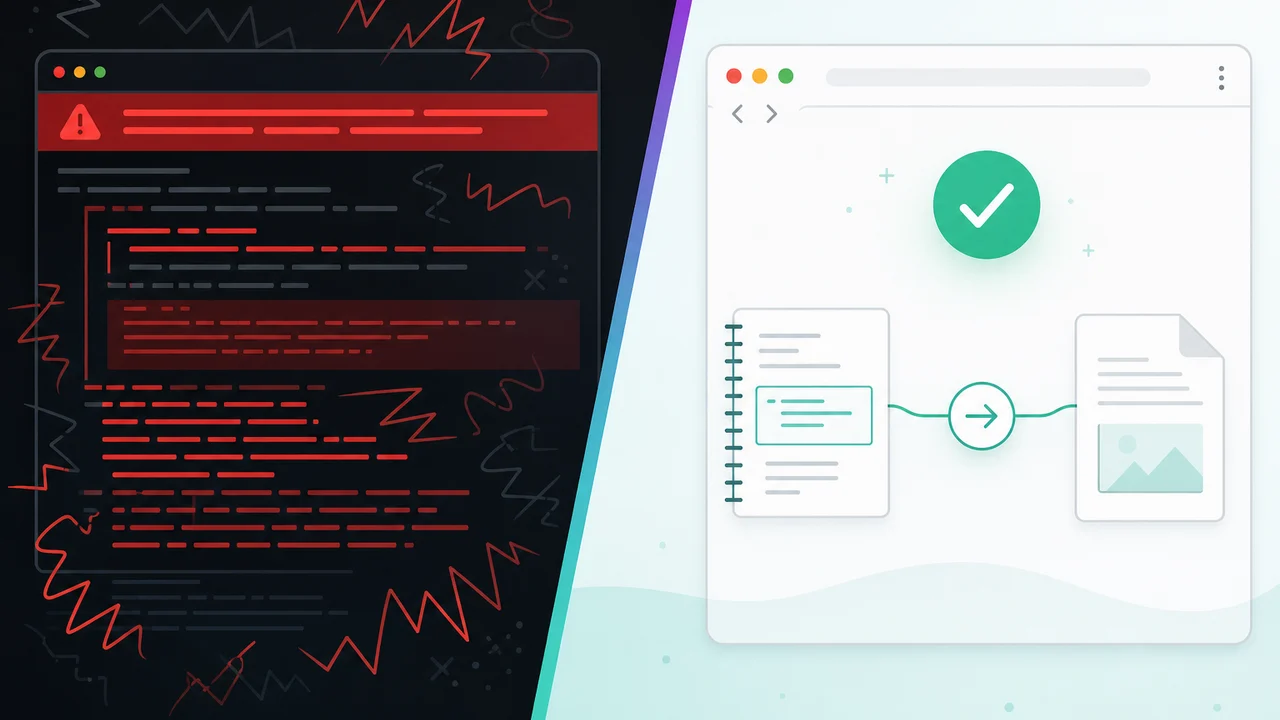
The menu path File → Download as → PDF via LaTeX and the CLI jupyter nbconvert --to pdf notebook.ipynb assume a working TeX install. Missing binaries surface errors such as xelatex not found or opaque PDF creating failed messages. Installing TeX is gigabytes and still leaves template mismatches on Windows paths.
Browser conversion avoids that class of failure because it does not shell out to a local TeX engine.
Broken layout and missing outputs
Half-rendered tables, clipped code blocks, and charts that vanish usually mean the export path ignored notebook structure or the outputs were never saved. Run cells before exporting, then save. Converters only see what is inside the .ipynb, not what a kernel could recompute later.
Heavy notebooks
Machine learning notebooks with massive inline images can choke viewers or PDF generators. Mitigation stack: clean outputs, compress, split, then PDF—/ipynb-output-cleaner → /ipynb-compressor → /ipynb-splitter → /ipynb-to-pdf.
Export from Jupyter Notebook or Lab (local)
When TeX is installed and you like reproducible CLI builds:
- Open the notebook.
- File → Save and Export Notebook As… → PDF (wording varies by version).
- Or run
jupyter nbconvert --to pdf notebook.ipynbin a terminal with the same environment your kernel uses.
That path shines in CI/CD. For ad-hoc sharing, /ipynb-to-pdf stays the low-friction option.
Save IPYNB as PDF from Google Colab
Colab users often try File → Print → Save as PDF. It works for a fast proof, but typography and page breaks follow the browser print engine, not the notebook cell grid.
A tighter workflow:
- File → Download → Download .ipynb
- Open
/ipynb-to-pdflocally and convert.
You keep Colab for GPU work and still deliver a PDF that reads like a notebook.
Best practices before you export
- Clear secrets: scrub API keys, tokens, and student IDs; preview with
/ipynb-viewerif you are unsure what is embedded. - Normalize headings: real Markdown headings (
##,###) survive export better than bold one-liners pretending to be titles. - Resize giant plots: shrink matplotlib figures before saving so pagination stays sane.
- Merge related drafts: combine chapters with
/ipynb-mergerwhen a course wants one PDF bundle.
What your PDF can include
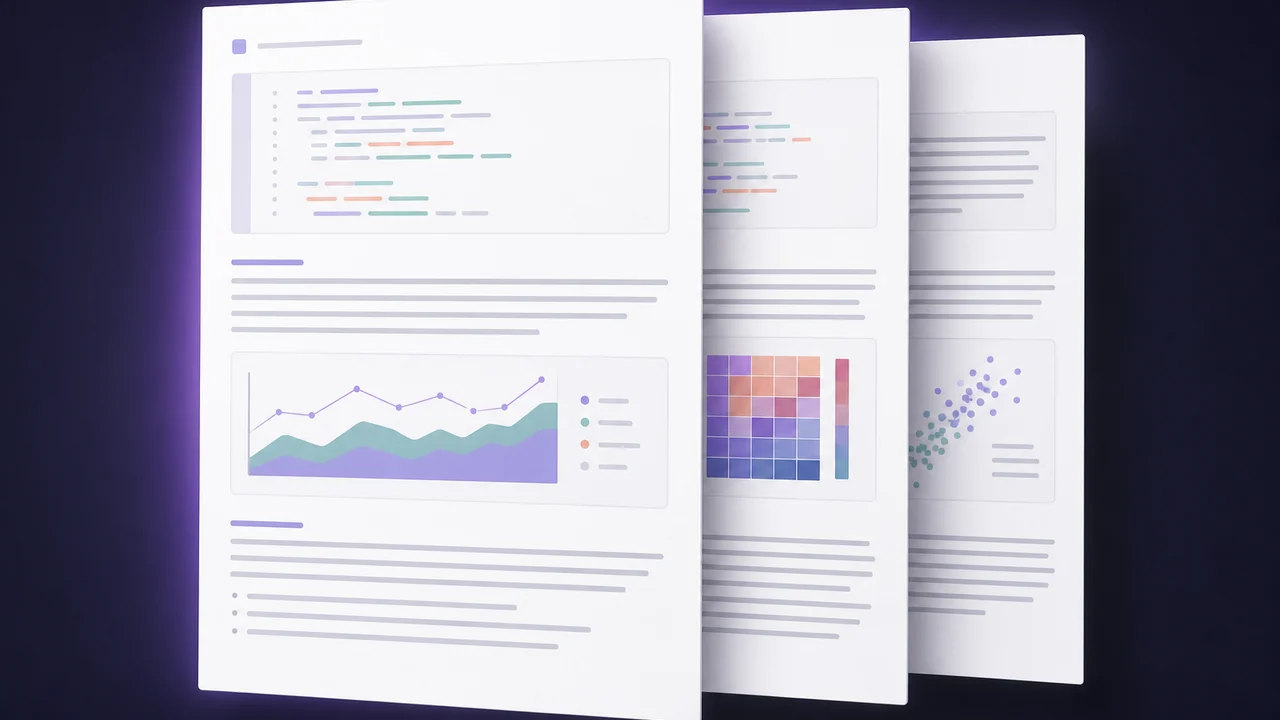
Our renderer walks the notebook structure: Markdown becomes readable sections, code stays monospace with highlighting, and saved text or image outputs follow the cells that produced them—similar to reading the notebook, but paginated for print and email.
Need editable Word for track-changes review instead? Jump to /ipynb-to-docx. Need reflowable ebooks? See /ipynb-to-epub. Need journal-grade LaTeX for a template-driven paper? /ipynb-to-latex targets TeX-first workflows.
Picking a method (quick comparison)
Browser converter (/ipynb-to-pdf) — Best default for students and analysts: no install, predictable layout from saved outputs, works across OSes.
Jupyter / nbconvert PDF — Great when you already maintain TeX and want automation in pipelines; painful when TeX is missing.
Colab print-to-PDF — Fastest screenshot-style artifact; weakest on long code cells and precise pagination.
HTML then print — /ipynb-to-html plus browser print is flexible, but you manage print CSS yourself; /ipynb-to-pdf is the direct artifact.
Related tools on Jupy Tools
/ipynb-viewer— sanity-check notebooks before you submit./ipynb-output-cleaner— remove noisy outputs./ipynb-mergerand/ipynb-splitter— reshape long coursework./ipynb-to-jpg— glanceable thumbnails; see also our JPG guide → for raster-specific tips.
Closing thought
PDF should be a publish button, not a weekend debugging session. Keep the .ipynb as source truth, use /ipynb-to-pdf when LaTeX is not worth it, and reach for the rest of the toolbox → when notebooks need cleaning, splitting, or alternate formats.
FAQ: IPYNB to PDF
Open /ipynb-to-pdf, upload your saved notebook, generate the PDF, then download. The pipeline reads the cells and outputs already stored in the file—same mental model as exporting from Jupyter, without a local LaTeX stack.
Yes. Classic jupyter nbconvert --to pdf often expects a TeX distribution. The /ipynb-to-pdf tool builds the PDF via secure server conversion from the serialized notebook JSON, so you skip xelatex not found style failures entirely.
Most failures trace back to missing TeX binaries, PATH issues, or incompatible templates. Fixing that on every machine is tedious. If you only need a readable, shareable PDF, browser conversion sidesteps the TeX requirement.
Colab’s Print → Save as PDF route works for a quick screenshot-style export, but page breaks and code wrapping can look uneven. For a notebook-native layout, download the .ipynb and run it through /ipynb-to-pdf instead.
Anything that preserves headings, code, and saved outputs without asking you to debug TeX at midnight. Pair /ipynb-to-pdf with /ipynb-output-cleaner if graders complain about noisy debug cells.
No unless you strip it yourself. By default both Markdown and code cells flow into the PDF; toggle options on /ipynb-to-pdf if you want to hide code or outputs for a specific audience.
Usually yes, but huge embedded plots inflate file size and memory use. Trim redundant outputs with /ipynb-output-cleaner or /ipynb-compressor, split long labs with /ipynb-splitter, then export each part.
Treat every tool like a security decision. Converter downloads are processed briefly on our servers and are not stored afterward (Cache-Control: no-store). Still scrub API keys before you share any export publicly.
That is a different problem—PDFs are layout-first, notebooks are structured data—so automated round-trips are unreliable. Keep the canonical .ipynb in version control and treat PDF as a publish artifact.
Modern mobile browsers can run the workflow, but large notebooks are more comfortable on desktop. Upload, wait for generation, then save the download like any other mobile file.