

How to Compare Two Jupyter Notebook Files Online: No Setup Required
A practical guide to spotting exactly what changed between two .ipynb files: code, Markdown, and outputs, right in your browser with the free JupyTools notebook diff viewer.

Every data scientist hits this moment eventually. You open a .ipynb file and something feels different: a model's accuracy shifted, a function body changed, or an output disappeared. The file in your downloads folder and the one your teammate sent are somehow not the same. You need to know exactly what changed.
Running git diff on a notebook often returns thousands of JSON lines that tell you almost nothing useful. Output cells carry base64-encoded images, execution counts update on every run, and metadata shifts silently. By the time you parse all that noise, you have lost the actual change.
This guide walks through the practical way to compare two .ipynb files online - instantly, without installing a package - using JupyTools' free notebook diff viewer. You will also learn what makes a good IPYNB diff tool, when to reach for command-line alternatives, and how to work more efficiently during code review.
Quick answer: open /ipynb-diff, drop your baseline notebook on the left and the revised one on the right. The diff renders immediately with added, removed, and changed cells highlighted side by side. Everything runs in your browser; nothing uploads anywhere.
Why a plain git diff fails for .ipynb files
Jupyter notebooks store everything - cells, outputs, metadata, and execution counts - inside a single JSON file. On the surface that sounds version-control-friendly, but in practice it creates three stubborn problems for plain-text diff tools.
Execution counts change on every run
Every time you run a cell, Jupyter increments its execution_count field. When you diff two notebooks that ran with different kernels or in different sessions, every cell can show as changed even if the source code is identical. The signal drowns in the noise.
Output cells balloon the diff
A single Matplotlib plot can be saved as a base64-encoded PNG string inside the JSON. One changed chart can mean thousands of diff lines, none of which tells you what changed in the analysis. The same problem appears with rich HTML outputs from pandas DataFrames or interactive widgets.
Cell reordering looks like a full rewrite
Moving one cell up breaks the line-number alignment that plain diff tools rely on. A small repositioning can look like a massive removal and reinsertion, leaving you to scroll manually and guess what actually moved.
What git diff shows you:
-   "execution_count": 14,
+   "execution_count": 15,
    "metadata": {},
-   "outputs": [{"data": {"image/png": "iVBORw0KGgo..."}}]
+   "outputs": [{"data": {"image/png": "iVBORw0KGgo...AAAA"}}]
    "source": [
      "plt.plot(x, y)"
    ]
A proper IPYNB diff finder parses the notebook structure, hashes each cell by type and source content, aligns cells before showing changes, and then runs a line-level diff only where it matters. That is what the JupyTools diff viewer does.
How to compare two .ipynb files online
1. Open the tool and drop your notebooks
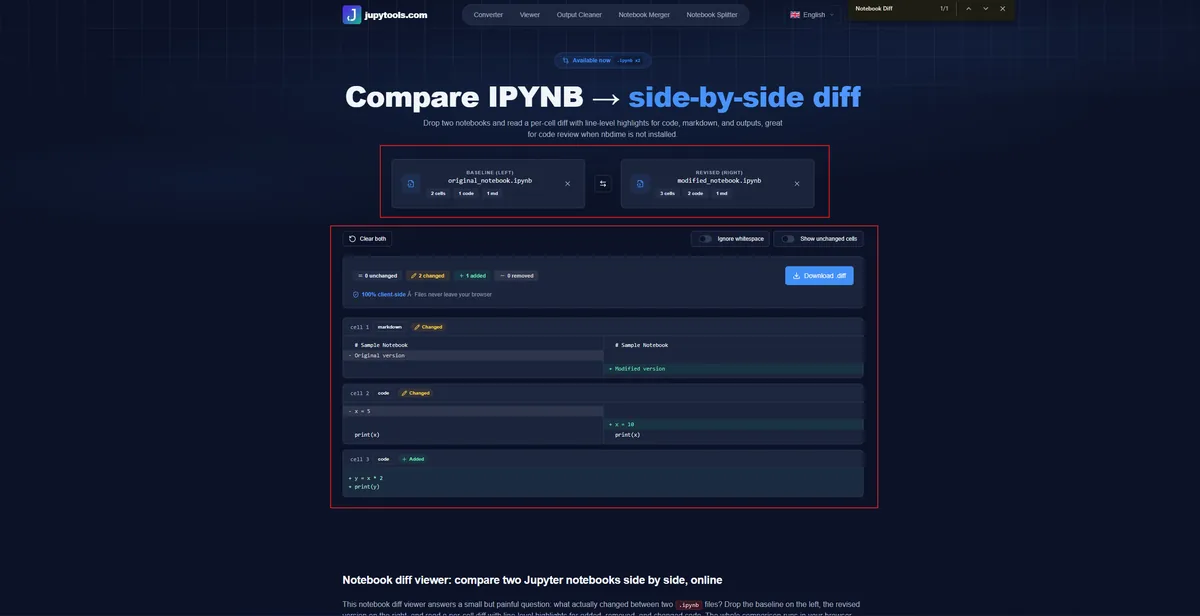
Go to /ipynb-diff. Drag your baseline notebook onto the left drop zone and the revised notebook onto the right. You can also click each zone to browse your file system. No account, no login; the tool works as soon as the page loads.
2. Read the per-cell diff with line highlights
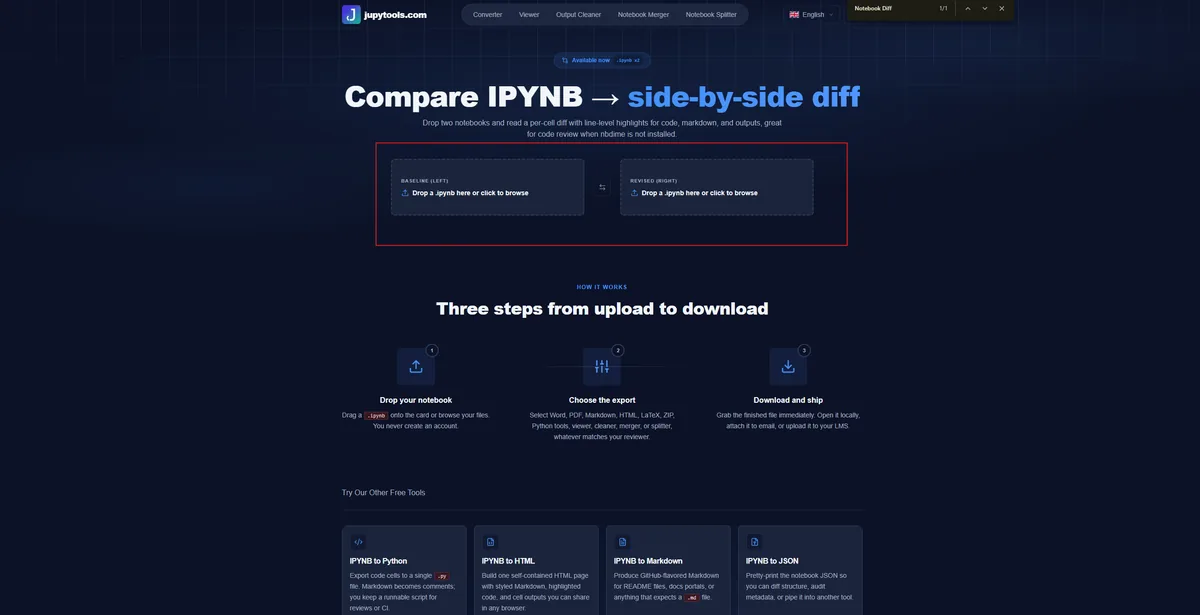
The viewer parses both files and shows a side-by-side comparison. Added cells show in green, removed cells in red, and changed cells highlight only the exact lines that differ instead of marking the whole cell as rewritten.
3. Use the toggles and download if needed
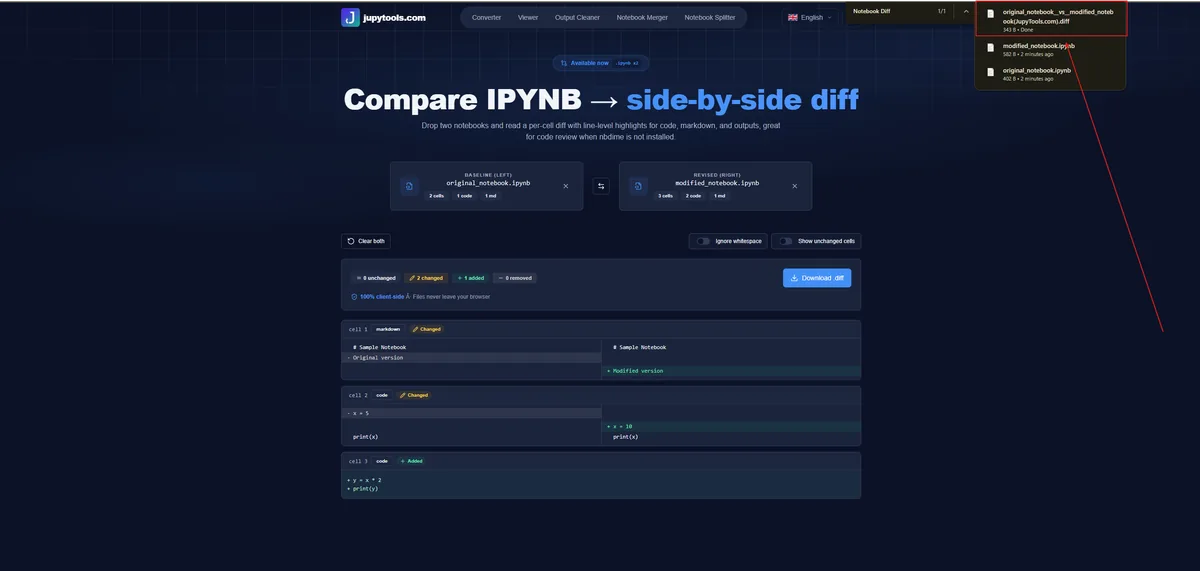
Toggle Ignore whitespace when a formatter like Black, Ruff, or autopep8 touched the file. Toggle Show unchanged cells when you want full context during a review. Use Download .diff to save a unified text patch you can paste into a pull request, email, or ticket.
Privacy guarantee: both notebooks parse and diff entirely inside your browser tab. No file data travels to a server. Closing the tab wipes the comparison, which is useful for client notebooks, proprietary research, and exam submissions you cannot share publicly.
What makes a good IPYNB diff tool
Not all notebook diff tools behave the same. These are the capabilities that matter in day-to-day work:
- Cell-level alignment: matches cells by content instead of raw JSON line number, so moved cells do not appear as deletion plus insertion.
- Line-level highlighting: shows the exact line inside a changed cell, which is essential for spotting a single renamed variable in a longer function.
- Client-side processing: keeps the notebook in the browser rather than uploading private work to a conversion service.
- Noise suppression: ignores execution counts and optionally filters whitespace-only changes.
- Exportable output: downloads a unified
.difffile with cell anchors for reviews, tickets, or audit trails. - Zero install: works on Chromebooks, tablets, locked corporate laptops, and any machine where you can open a modern browser.
Online tool vs. nbdime vs. VS Code
There is no single right answer for every workflow.
JupyTools diff viewer is best for quick reviews, locked laptops, notebooks shared outside Git, Colab or Kaggle files, and non-developer reviewers. It requires only a browser and keeps processing local to the tab.
nbdime is best for terminal-heavy workflows, Git integration, and CI pipelines with nbdiff hooks. It requires Python plus a local install.
VS Code notebook diff is best when the notebook already lives in a VS Code workspace with the Jupyter extension installed.
ReviewNB is best for GitHub pull request discussions and persistent comments on notebook cells, but private repositories may require a paid plan and the data leaves the device.
Plain git diff can still help automation and CI checks, but it is rarely a readable human review surface for notebooks.
JupyTools fills the gap that nbdime and VS Code leave open: a readable side-by-side diff with zero configuration and no assumption that the notebook lives in a Git repository. A reviewer on a Chromebook can open it in a few seconds.
Real situations where an IPYNB diff finder saves time
Code review without a Git repository
Many data science teams still share notebooks over email, Slack, or shared drives instead of pull requests. When a teammate sends analysis-v2.ipynb, you need to see what changed without setting up a Git workflow. Drop both files into the IPYNB compare tool and you get a clean report in under ten seconds.
Tracking experiment iterations
You run an experiment, adjust hyperparameters, run it again, and save the second notebook under a new name. Two weeks later you want to know exactly what changed between the runs. The diff viewer surfaces code and Markdown edits without requiring a Git history you never created.
Reviewing student or colleague submissions
Instructors often receive multiple versions of the same assignment. Comparing a final submission against a starter template, or against a previous attempt, shows which code blocks changed and which stayed untouched. Pair it with the notebook viewer when you also need to read the finished file.
Checking what a formatter changed
Tools like Black, Ruff, isort, and autopep8 reformat code without changing its logic. Before committing a reformatted notebook, turn on Ignore whitespace. If no meaningful changes appear, you know the formatter only touched spacing.
Merging notebooks after a collaboration conflict
When two people edit the same notebook and a merge produces conflicts, the file can break. Use the notebook repair tool to fix the file first, then compare the repaired version against the original to confirm no work was lost.
How the diff algorithm handles notebook noise
The viewer does not diff the raw JSON. It reads both files into the same internal notebook model that Jupyter uses, then builds the comparison at the semantic level.
First, it hashes each cell on two fields: cell_type and source. Execution counts, output IDs, and widget state are not part of the hash, so they do not create false positives.
Second, it walks a longest-common-subsequence across those hashes. That is the same family of algorithm behind text diffs, but applied at the cell level instead of the JSON line level. Identical cells land on the same row in both columns; genuinely new, removed, or edited cells show as changes.
Third, for each changed cell, it runs a line-level diff on the source text so you see exactly which line shifted.
What JupyTools shows you:
Baseline
lr = 0.01
epochs = 50
optimizer = Adam(lr)

Revised
lr = 0.01
epochs = 100
optimizer = Adam(lr)
When you do want the command line
The browser tool handles most day-to-day comparisons, but if you want IPYNB diff baked into Git on a machine where you already have Python, nbdime is the right choice.
pip install nbdime
nbdime config-git --enable --global
nbdiff baseline.ipynb revised.ipynb
After config-git, every Git diff on a .ipynb file can route through nbdime's renderer instead of raw JSON. The trade-off is setup: it only works on machines with Python and nbdime installed, and it is strongest when the notebooks live inside a Git repository.
For everything outside that narrow case - a Colab notebook, a file shared over Slack, or a reviewer on a different operating system - the browser-based IPYNB compare tool is faster.
More free tools on JupyTools
- Notebook Viewer - read
.ipynbfiles without Jupyter. - Output Cleaner - strip heavy outputs before pushing to Git.
- Notebook Repair - fix broken or corrupted
.ipynbfiles. - Notebook Merger - combine multiple notebooks into one.
- Notebook Compressor - shrink
.ipynbfiles for Git or email. - IPYNB to HTML - share notebooks in any browser.
- IPYNB to PDF - export for submissions and journals.
- IPYNB to Python - extract code cells as a
.pyscript.
Browse the full catalog from /tools.
The bottom line
Comparing two .ipynb files does not need to be painful. Raw git diff output floods you with JSON noise. Installing nbdime takes setup time you often do not have. The JupyTools notebook diff viewer gives you a clean, cell-aligned, line-highlighted comparison in the time it takes to drag two files onto a page.
Use it when you get a "v2" notebook over email. Use it before committing a reformatted file. Use it when a colleague on a different OS needs to review your work. Use it when the notebook lives outside Git entirely.
Everything stays in your browser. Nothing uploads anywhere. And when you need more - cleaning outputs before a Git push, repairing a broken notebook, or merging two notebooks into one - the rest of JupyTools covers those cases too.
FAQ: comparing Jupyter notebooks
Yes. Download the Colab notebook as a .ipynb file from File -> Download -> Download .ipynb, then upload both versions to /ipynb-diff. The tool handles valid notebooks from Colab, Kaggle, JupyterLab, VS Code, and classic Jupyter.
Yes. The diff viewer treats code cells, Markdown cells, and raw cells separately. Each type stays visible so you can tell whether a change landed in documentation, code, or raw content.
Use the swap control to flip baseline and revised without uploading again. Added and removed badges update to match the new direction.
The comparison runs in your browser's JavaScript engine, so practical limits depend on device memory. Notebooks under 50 MB usually diff smoothly on a standard laptop. For very large notebooks with heavy image outputs, use /ipynb-output-cleaner first.
For browser-based visual diffs without Git setup, yes. ReviewNB is built for GitHub PR comments and team workflows. nbdime is built for terminal workflows and Git hooks. JupyTools is built for quickly seeing what changed between two files on any device.
Yes. Click Download .diff to export a unified text patch with cell anchors. You can paste it into a pull request comment, attach it to a ticket, or store it next to the notebook as a changelog entry.
It tells the line-level diff to treat runs of spaces and tabs as equal. When Black, Ruff, or another formatter touched the notebook, this filters cosmetic spacing changes so meaningful edits are easier to see.