

IPYNB to Word Converter: Convert Jupyter Notebook to DOCX Online Free
Convert ipynb to Word in your browser—editable DOCX for assignments, clients, and reviewers. No Pandoc, no Jupyter install. Learn why DOCX wins, what to preserve, and how to prepare your notebook before using our free ipynb to docx online tool.

Jupyter Notebook (.ipynb) files are ideal for coding, data analysis, machine learning, research, and teaching—but when you need to submit work, share results with a non-technical reader, or edit the final report in Microsoft Word, raw IPYNB is rarely the right deliverable. That is exactly where an ipynb to word workflow matters.
With Jupy Tools /ipynb-to-docx → you can convert ipynb to Word and get an editable .docx from your notebook online, without installing Python, Jupyter, Pandoc, LaTeX, or extra command-line tools. Upload the file, export, download—then continue in Word or Google Docs.
This guide explains how to convert IPYNB to Word, why DOCX beats DOC, what should survive conversion, and how to prepare your notebook so the export ranks well with humans and search engines.
What is an IPYNB file?
An IPYNB file is a Jupyter Notebook: JSON that stores ordered cells—Markdown, code, and sometimes raw blocks—plus metadata and serialized outputs (text, HTML, images, charts). Data scientists, students, researchers, Python developers, and AI engineers use notebooks because narrative and executable code live in one place.
The friction appears at hand-off: reviewers, teachers, clients, and managers often want a Microsoft Word document for comments, tracked changes, print-ready layout, and LMS uploads. That search intent clusters around phrases like jupyter notebook to docx, convert ipynb to word, and ipynb to word online free—all the same job: notebook → editable document.
Why convert IPYNB to Word?
A notebook is perfect while you iterate; Word (DOCX) is better when the artifact must read like a report. You may want jupyter notebook to word when you need to:
- Submit a university assignment or research report.
- Share notebook results with someone who does not use Jupyter.
- Edit explanations in Microsoft Word or Google Docs.
- Use comments, tracked changes, or final polish in a DOCX editor.
- Ship a clean document built from Python code, Markdown, and saved outputs.
- Send analysis to a client or business team that expects Office formats.
- Archive notebook content in a document-friendly format.
Many tools advertise “online conversion” and “editable DOCX.” Jupy Tools focuses on a clear workflow plus practical prep steps so your jupyter notebook to word document export is predictable—not a surprise wall of monospace.
How to convert IPYNB to Word online
Using an online ipynb to word path is usually fastest: no Anaconda, no Pandoc path debugging, no IT tickets for TeX.
Steps (ipynb to docx online)
- Open
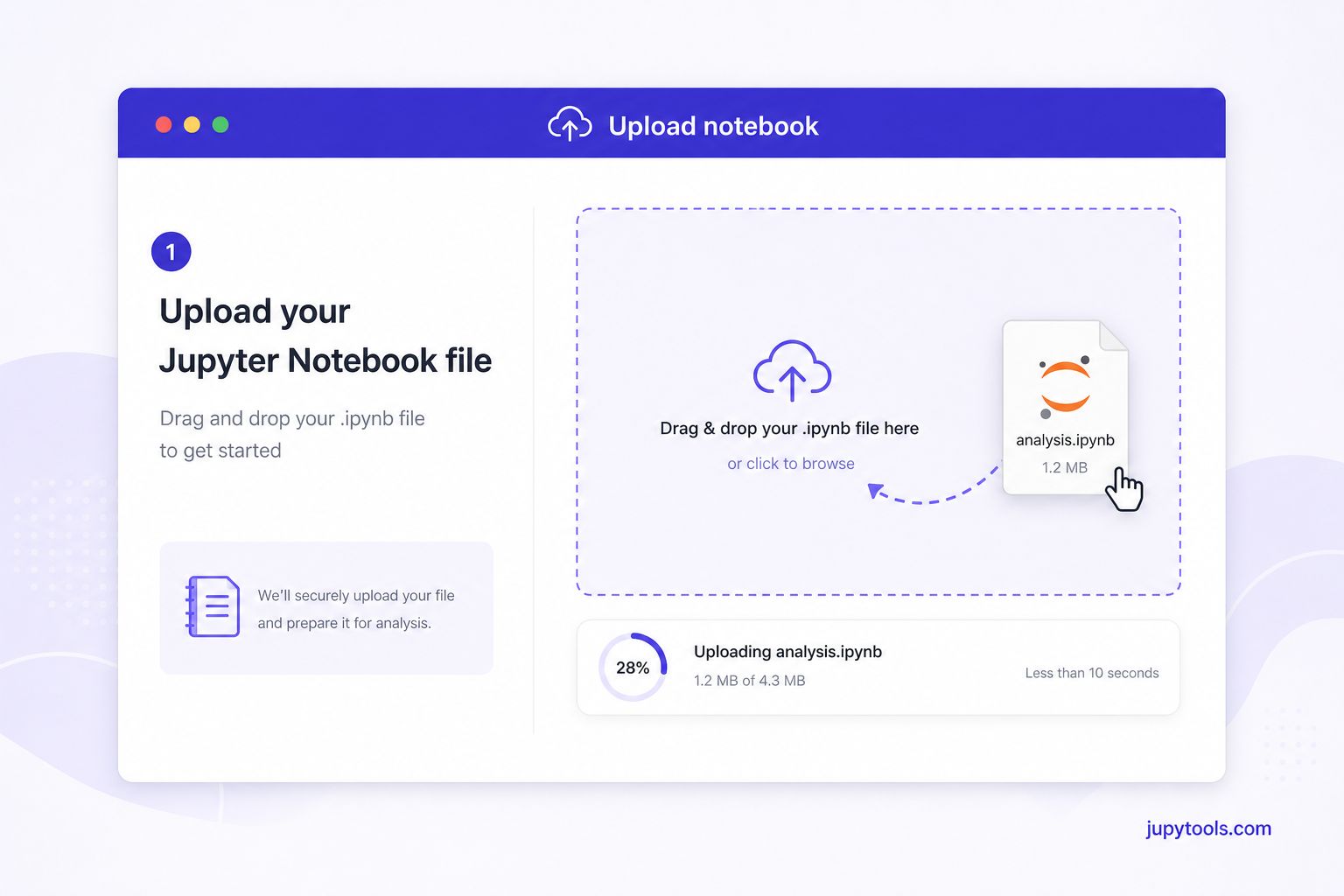
/ipynb-to-docx→ (bookmark it for deadline season). - Upload your saved
.ipynbJupyter Notebook. - Start the conversion and wait while cells are processed in the browser.
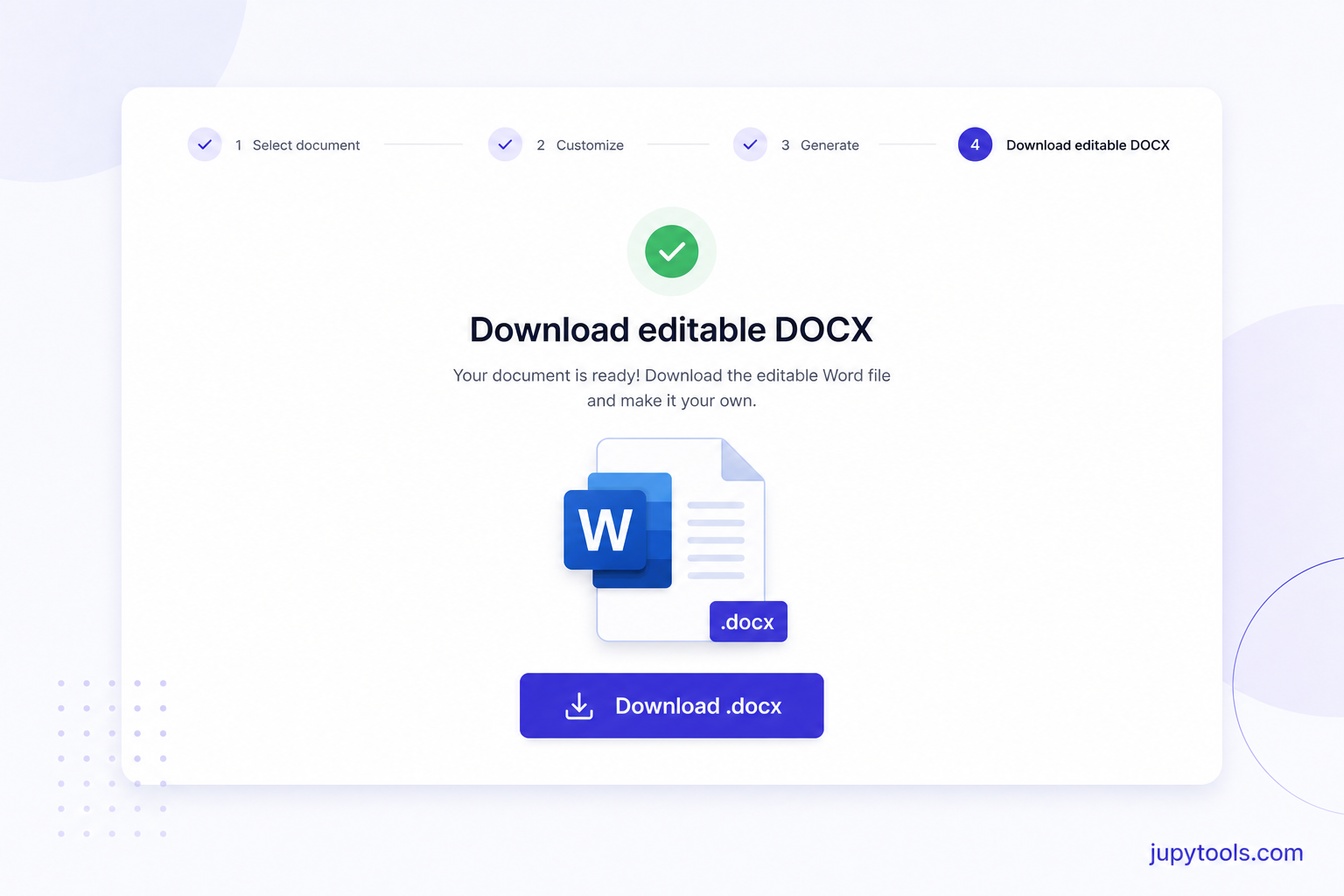
- Download the generated
.docxWord document. - Open the file in Microsoft Word, Google Docs, LibreOffice, or another DOCX editor.
Before you click convert: confirm Markdown headings are real # / ## / ### lines (not only bold text), code cells are in a sensible order, and outputs are already executed—especially charts and tables. If plots are missing in Word, the notebook probably never saved those outputs to disk.
Preview before you convert
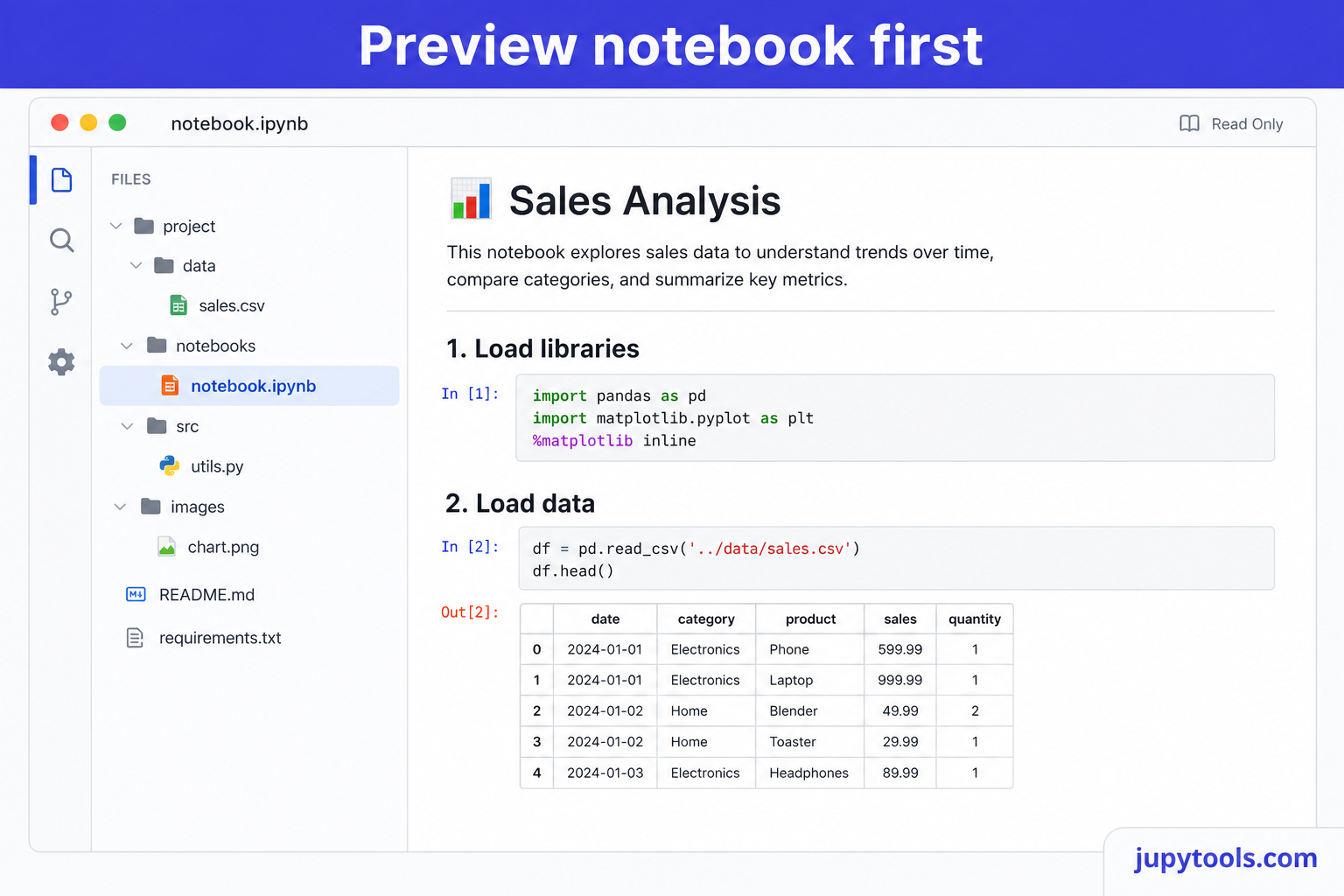
Not sure what is inside a notebook you received over email or Drive? Open it first with /ipynb-viewer →—a lightweight ipynb opener that helps you sanity-check structure and outputs before you run convert jupyter notebook to word online free flows.
Convert Jupyter Notebook to Word without Pandoc
Classic setups often lean on Pandoc or jupyter nbconvert. A typical local command looks like:
jupyter nbconvert --to docx notebook.ipynb
That can work—until TeX paths, templates, or missing binaries break the chain. Public threads are full of “install Pandoc” advice for jupyter to word without pandoc refugees.
Browser conversion sidesteps that class of failure: you are not shelling out to a local toolchain you may not control. For students on loaner laptops, teachers on locked-down images, and analysts who only need a one-off ipynb to word converter, no Pandoc is a feature—not a compromise.
What should be preserved in IPYNB to DOCX?
A strong ipynb to docx export should not look like a pasted JSON dump. Aim for:
Markdown cells
Headings, paragraphs, lists, links, emphasis, and teaching narrative should land as normal Word content—not a single code font wall.
Code blocks
Code cells should stay readable and separated from prose. That matters for programming coursework, ML documentation, and reproducibility appendices.
Outputs
Text results, tables, tracebacks (when you want them), and static images from executed cells should map into the document when they exist in the file.
Images and plots
Matplotlib figures and embedded images belong in the DOCX if they are saved in the notebook. Rule of thumb: Kernel → Restart & Run All → Save before export.
Headings and structure
Logical outline in Markdown becomes logical outline in Word—especially when heading levels are consistent. That also helps you insert a Table of Contents in Word after import.
IPYNB to DOCX vs IPYNB to DOC
Choose DOCX for almost every modern workflow. DOC is legacy; DOCX is the current Office Open XML format and plays nicely with Word, Google Docs, LibreOffice, and OnlyOffice. If your rubric says “Word document,” assume DOCX unless an ancient system explicitly demands .doc.
Online IPYNB converter vs local export
| Approach | Best when… | Watch-outs |
| --- | --- | --- |
| Online /ipynb-to-docx | You want speed, zero install, Chromebook / shared PC | Very large notebooks: clean outputs first |
| Local nbconvert / Pandoc | You maintain templates in CI/CD | Toolchain drift, PATH, TeX surprises |
For most coursework and one-off reports, ipynb to word online free beats fighting local dependencies.
Best practices before converting IPYNB to Word
- Run all cells so outputs, tables, and plots are serialized.
- Remove scratch cells and noisy debug prints (try
/ipynb-output-cleaner→). - Use real heading syntax instead of bold-only “fake headings.”
- Short paragraphs around code cells read better in Word.
- Resize enormous plots if pagination gets awkward.
- Simple file names avoid odd edge cases in downloads.
A clean notebook almost always becomes a cleaner jupyter notebook to docx file.
Who needs an IPYNB to Word converter?
- Students handing in DOCX to an LMS.
- Teachers who comment faster in Word than in notebook JSON.
- Researchers drafting papers with track changes.
- Data analysts sending results to business stakeholders.
- Freelancers packaging client-ready reports.
If your audience lives in Office, convert ipynb to word is the bridge from your notebook truth to their editing surface.
Open IPYNB before converting
Sometimes you inherit a notebook from Slack, Drive, or a class portal. /ipynb-viewer → lets you open ipynb in the browser without installing Jupyter—useful for internal linking and for queries like ipynb viewer or ipynb opener that sit in the same SEO cluster as conversion intent.
Related tools on Jupy Tools
/ipynb-to-docx→ — primary ipynb to word export./ipynb-viewer→ — read-only preview before Word export./ipynb-output-cleaner→ — shrink noisy outputs./ipynb-to-pdf→ — when the rubric wants PDF instead of DOCX./tools→ — full catalog of converters and notebook utilities.
Final thoughts
Convert ipynb to word should not require a weekend configuring Pandoc. With /ipynb-to-docx you move from notebook JSON to an editable DOCX in minutes—keeping code, Markdown, and saved outputs useful for reviewers who will never open Jupyter.
Whether you are polishing a class submission, a research draft, or a client memo, pairing preview → clean → export is the fastest path to a professional jupyter notebook to word hand-in—free, browser-based, and aligned with how real teams review work.
FAQ: IPYNB to Word (DOCX)
Open the IPYNB to Word converter at /ipynb-to-docx, upload your .ipynb file, run the conversion, then download the .docx. Open it in Microsoft Word, Google Docs, LibreOffice, or any modern DOCX editor.
Yes. Jupy Tools builds the Word document via secure server conversion from the notebook JSON you load—no Pandoc, no jupyter nbconvert, no LaTeX stack, and no terminal setup on your machine.
A good export keeps code cells as readable monospace blocks separate from narrative Markdown. Run all cells first so the structure and outputs you see in Jupyter match what lands in the DOCX.
Yes. The /ipynb-to-docx workflow on Jupy Tools is free to use in the browser for typical coursework and report sizes, subject to practical browser memory limits (very large notebooks may need cleaning or splitting first).
Static images and plot outputs that are already saved inside the notebook’s cell outputs can be carried into the DOCX. Always execute the notebook end-to-end before export so charts are embedded, not only referenced from a cold kernel.
Yes. DOCX is the modern Word format; Google Docs, Word, and LibreOffice all import it reliably for comments, suggestions, and collaborative editing.
DOC is the legacy Microsoft Word binary format. DOCX is XML-based, smaller, safer for interoperability, and what you should choose for new submissions—especially when an LMS or client asks for “Word format.”
The notebook bytes you pick are processed briefly on our servers to produce the download and are not stored afterward. You should still scrub secrets before sharing any exported file, the same as you would for a PDF or HTML export.
If your Markdown uses real heading levels (#, ##, ###), Word can auto-build a TOC from styles after import. You can also insert a Table of Contents from the References tab once headings map to Word’s built-in Heading 1–3 styles.
The uploader is tuned for notebooks up to about 50 MB in typical browsers. If conversion feels slow or stalls, trim huge outputs with /ipynb-output-cleaner, compress assets with /ipynb-compressor, or split very long labs with /ipynb-splitter before exporting.