

How to Open an IPYNB File Online (No Python, No Jupyter)
View `.ipynb` notebooks in your browser: Markdown, syntax-highlighted code, and saved outputs—client-side on Jupy Tools. Works on Windows, Mac, and mobile. Links to `/ipynb-viewer`, export tools, and repair when a file misbehaves.

Someone sends you a .ipynb and you only need to read it—lecture notes, a take-home, a colleague’s analysis. Installing Python, conda, and Jupyter just to open one file is a heavy tax. This guide explains what notebooks are, why raw JSON is unreadable, and the fastest path: open /ipynb-viewer → in a normal browser, with optional exports when you are done skimming.
If you already know the outcome: go straight to /ipynb-viewer, load the file, scroll cells, use search and filters. Everything below is context for students, reviewers, and anyone comparing viewers.
What is an IPYNB file?
An .ipynb file is JSON that lists cells—Markdown, code, and sometimes raw blocks—plus metadata and serialized outputs (text, HTML, images) from the last time the notebook was executed. Jupyter, VS Code, Colab, and many course portals all use that format.
Opening the file in Notepad shows structure, not a notebook. A proper read needs something that understands nbformat and renders cells the way humans expect.
Why “just open it” is harder than it sounds
Classic Jupyter workflows assume a local stack: Python, packages, and often a running server. That is fine when you live in notebooks every day; it is friction when you only need to preview a file once. Web-based previews that upload your notebook to a remote service are another category entirely—fine for public repos, awkward for confidential coursework or proprietary numbers.
/ipynb-viewer targets the middle path: full structure in the browser tab you already have, without asking you to maintain a data-science environment.

The fastest path: open the viewer
- Open
/ipynb-viewerin Chrome, Edge, Firefox, or Safari. - Drag your
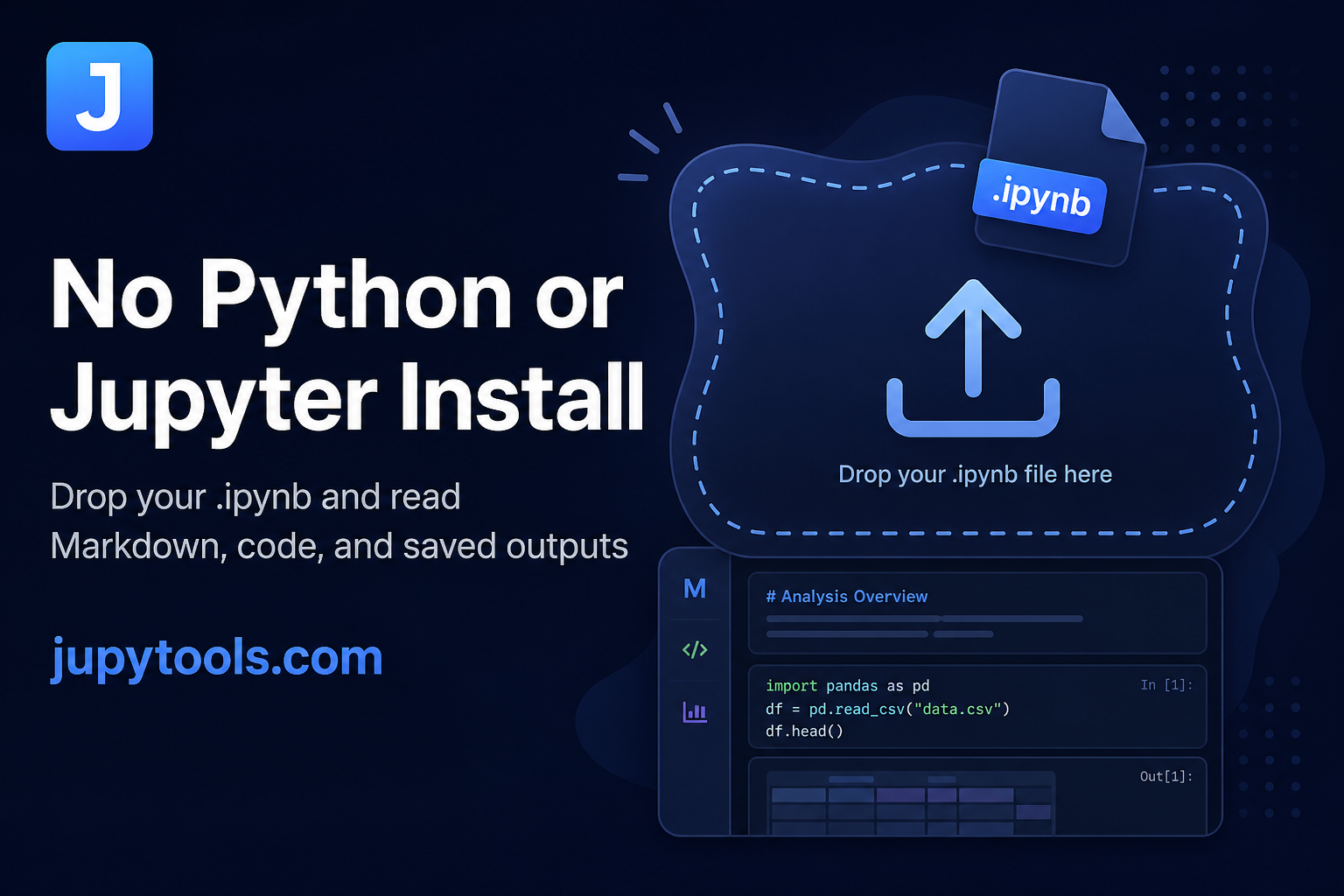
.ipynbonto the drop zone—or use browse to pick it from disk (up to the size limit shown on the page). - Read: Markdown renders, code keeps syntax highlighting, and saved outputs (plots, tables, prints) appear where the author left them.
- Optional: use search and cell-type filters when you are hunting for one section in a long lab.
Browse the full toolkit anytime from /tools.
What you see after upload
The results view is built for scanning: file name and rough stats, then the cell stream. You can copy snippets from code cells, filter to code-only or Markdown-only views, and search across the whole notebook—useful when a course pack is fifty cells deep.

Compared to a few common options
- Local Jupyter / VS Code — Full run and edit, but install and environment overhead.
- GitHub’s notebook preview — Handy for repos you already pushed; less convenient for a random attachment on disk.
- Hosted viewers that ingest uploads — May be fine for public work; a poor default when the file is sensitive.
/ipynb-viewer stays oriented around local files and browser-side parsing for the read-only pass.
Windows, macOS, Android, and iOS
Same URL everywhere: open the viewer, bring the file from File Explorer, Finder, or the mobile file picker. On phones, bookmark /ipynb-viewer if instructors often email .ipynb attachments.
After you finish reading
Viewing is usually step one. Common next hops on Jupy Tools:
/ipynb-to-pdf— LMS-friendly PDFs (see IPYNB to PDF →)./ipynb-to-docx— Track changes in Word./ipynb-to-htmlor/ipynb-to-markdown— Publish or paste into a blog./ipynb-output-cleaner— Strip bulky outputs before Git or email./ipynb-merger//ipynb-splitter— Bundle or split long coursework./ipynb-repair— When the JSON is damaged and nothing opens cleanly.
Need a raster thumbnail for Slack or a README? /ipynb-to-jpg and our JPG guide → cover that path.
Closing thought
When the task is understand what is inside an .ipynb, not execute every cell, a purpose-built viewer is the lightest tool. Keep the heavy environment for the day you actually need to run the kernel—and use /ipynb-viewer for everything else.
FAQ: IPYNB viewer
Open **/ipynb-viewer**, drop or browse to your notebook, and it renders in the tab. Markdown becomes readable prose, code cells keep highlighting, and saved outputs show as stored in the file. No Python, conda, or local Jupyter server.
Yes. There is no account, paywall, or upload queue for viewing. Use **/ipynb-viewer** as often as you need alongside the rest of the tools on **/tools**.
The viewer pipeline runs in your browser from the bytes you load. Treat every tool as a security decision anyway—scrub secrets before you share any export—but viewing stays local to your session.
Modern mobile browsers work: open **/ipynb-viewer**, tap the upload area, and pick the file from Downloads or cloud storage. Large notebooks are easier on desktop, but reading on the go is supported.
No. The viewer is read-only: it shows the saved notebook structure and outputs. To execute or edit cells, use JupyterLab, VS Code with the Jupyter extension, or Google Colab. Use Jupy Tools to preview and inspect first.
**Viewing** shows Markdown, code, and whatever outputs were serialized the last time the notebook was saved. **Running** needs a live kernel to execute cells. Jupy Tools does not run kernels for you.
Use **/ipynb-to-pdf**, **/ipynb-to-docx**, **/ipynb-to-html**, or **/ipynb-to-markdown** from the same workflow. See our **[IPYNB to PDF guide →](/blog/how-to-convert-ipynb-to-pdf)** when graders want a fixed-layout hand-in.
If JSON is corrupted or metadata is inconsistent, run **/ipynb-repair** on a copy, then open the repaired file in **/ipynb-viewer** again. For oversized attachments, **/ipynb-output-cleaner** or **/ipynb-compressor** can help before sharing.
The .ipynb format is shared across kernels. Jupy Tools reads the cell structure the same way; highlighting is strongest for Python, but Markdown and code cells still display sensibly for other languages.